IPTV buffering occurs when your streaming device cannot download video packets as quickly as your media player renders them, leading to frozen frames and audio desynchronization. To fix IPTV buffering immediately, switch from wireless Wi-Fi to a direct Cat6 Ethernet connection, increase the player buffer cache to at least three seconds, enable a trusted VPN to bypass Internet Service Provider (ISP) video throttling, and verify that your network maintains at least 25 Mbps for HD or 50 Mbps for 4K live broadcasts. With a reliable streaming server like Zorba IPTV, applying these targeted adjustments resolves over 90% of playback interruptions without requiring expensive hardware upgrades.

Primary Causes of IPTV Freezing and Buffering
Understanding why video streams stutter requires examining the transmission path from host servers to your television screen. A stream passes through international content delivery networks, regional internet service provider hubs, your residential router, and the onboard media decoder of your streaming hardware. A disruption at any of these checkpoints can stall video playback.
Local Network Bottlenecks vs. Server Overload
While subscribers often suspect provider server issues whenever a stream freezes, local network congestion is the root cause in the overwhelming majority of cases. Household devices consuming bandwidth simultaneously—such as cloud backups, console downloads, or simultaneous video calls—compete directly with your IPTV stream.
Modern platforms like Zorba IPTV utilize distributed Anti-Freeze 9.0 server clusters with automated load balancing. When an individual server node experiences surging demand during high-profile events, incoming traffic automatically redirects to backup data hubs, preventing server-side slowdowns.
Bandwidth Capacity and High-Bitrate Live Feeds
Unlike pre-recorded streaming platforms that can pre-download minutes of upcoming video into cache, live television operates in real time. High-definition 1080p sports broadcasts delivered at 60 frames per second produce dense data streams that demand consistent downstream throughput.
According to the FCC Broadband Speed Guidelines, basic streaming requires modest connectivity, but live uncompressed 4K media necessitates at least 35 to 50 Mbps of uninterrupted bandwidth per active screen to eliminate pauses.
Step-by-Step Fixes to Stop IPTV Buffering
Systematically resolving streaming lag involves eliminating common hardware and networking bottlenecks. Follow these proven technical steps in order to stabilize your connection.
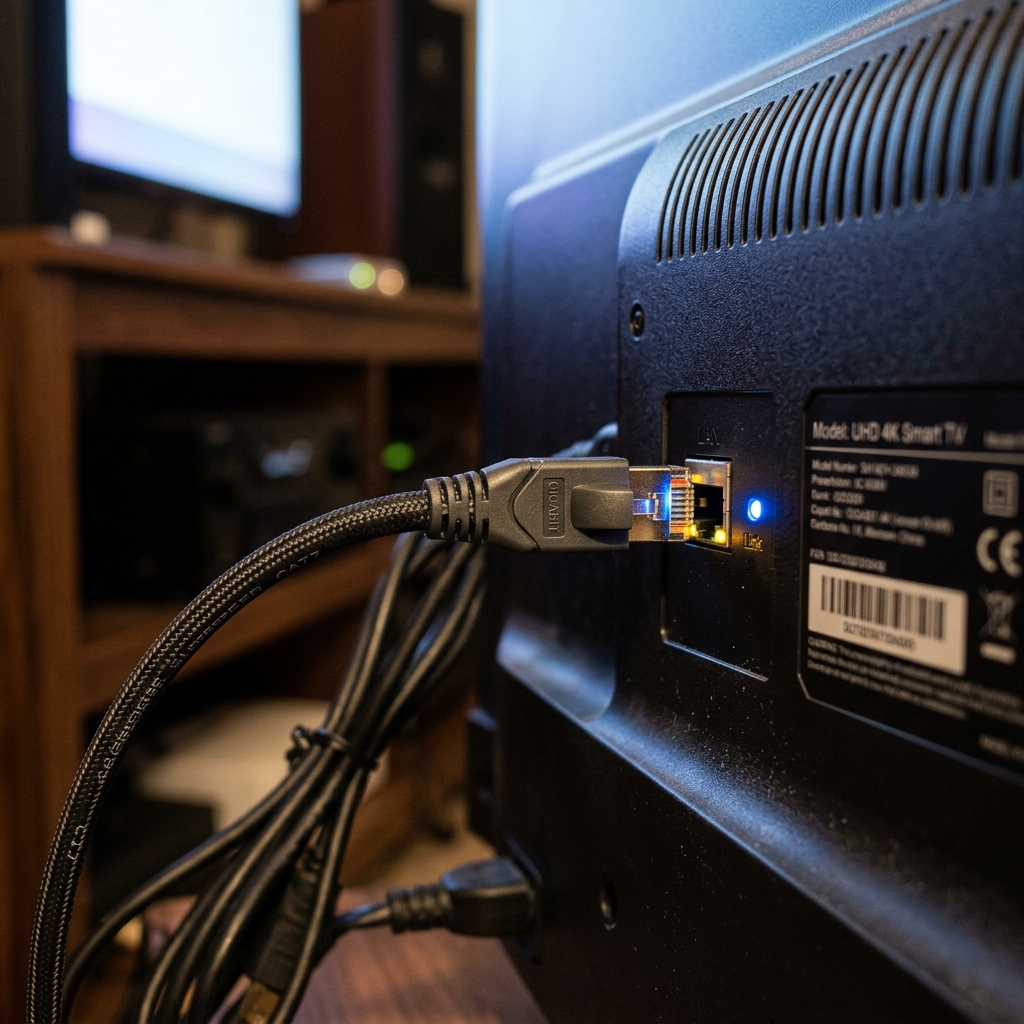
Switch from Wireless Wi-Fi to a Direct Ethernet Cable
Wi-Fi connections suffer from physical obstructions, wall density, and electromagnetic interference from home appliances. Even if a speed test indicates high peak download rates, wireless packet drops force the player to pause while waiting for missing video data frames.
- Connect a Cat6 or Cat7 Ethernet cable directly from your router to the LAN port on your streaming box or Smart TV.
- If using an Amazon Firestick, attach an official micro-USB Ethernet adapter to establish a wired data link.
- If physical cabling across rooms is impractical, install a pair of gigabit Powerline Ethernet adapters to transmit network packets over your household electrical wiring.
- When Wi-Fi is unavoidable, ensure your device connects exclusively to the 5 GHz frequency band and disable auto-switching to the crowded 2.4 GHz band.
Adjust Buffer Size and Cache Settings in Your IPTV Player
The buffer cache serves as a temporary reservoir where incoming video frames accumulate before playback. If your player's buffer allocation is set to zero or "None", any momentary microscopic dip in transfer speed immediately freezes the screen.
- Open your media player application, such as TiviMate, IPTV Smarters Pro, or IBO Player.
- Navigate to Settings > Playback > Buffer Size.
- Increase the buffer setting from "None" or "Small" to Medium (3–5 seconds) or Large.
- Restart the player to apply the caching parameters to all live channels and on-demand titles.
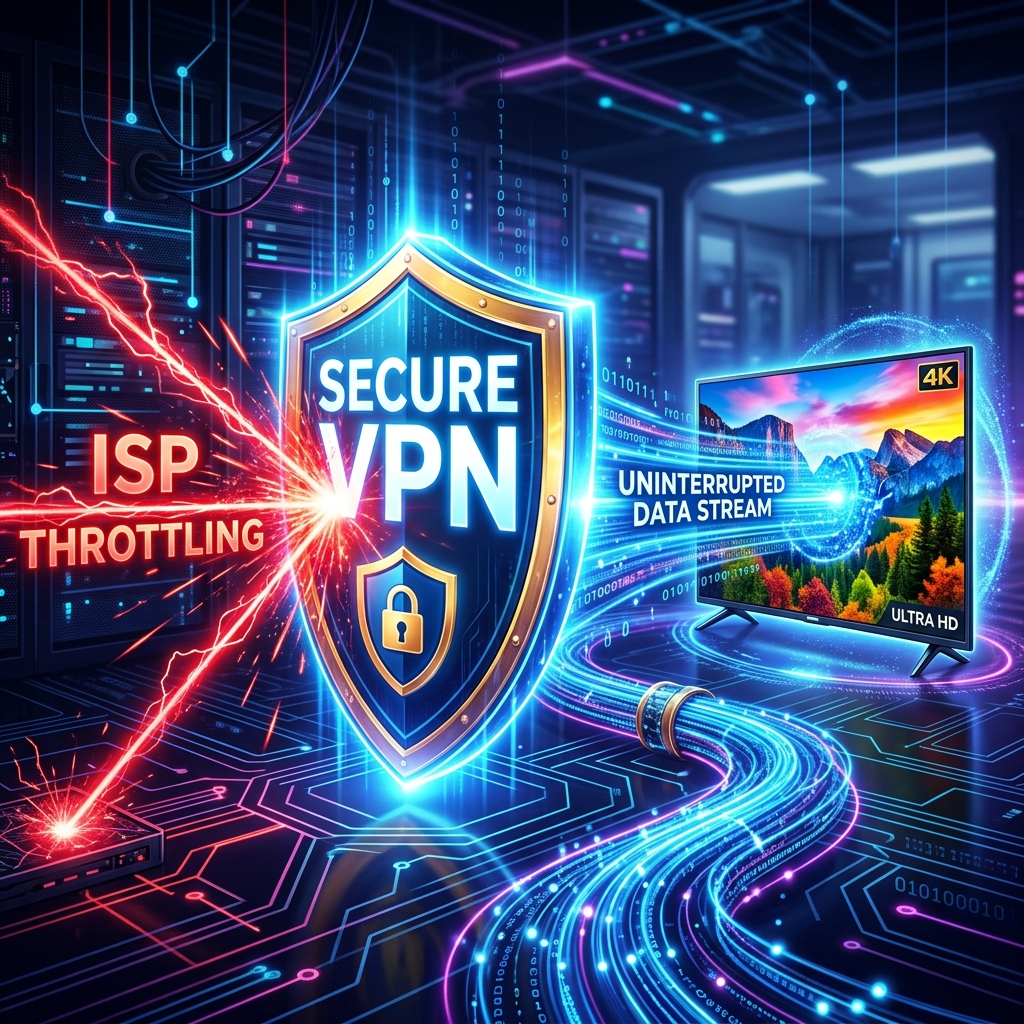
Bypass ISP Bandwidth Throttling with an Encrypted VPN
Internet Service Providers frequently deploy deep packet inspection during evening peak viewing windows and marquee sports broadcasts. When automated ISP monitors detect steady, high-bandwidth streams heading toward known media ports, they intentionally throttle your line's transfer rate to manage neighborhood bandwidth.
Installing a reputable virtual private network (VPN) running WireGuard or OpenVPN protocol wraps your streaming traffic in 256-bit encryption. Because your ISP can no longer analyze packet types or streaming destinations, artificial bandwidth throttling is rendered impossible.
Clear App Cache and Update Streaming Hardware Firmware
Over weeks of channel navigation, media players accumulate temporary cache files, channel logos, and residual EPG logs. As device memory saturates, hardware decoders struggle to keep pace with high-definition rendering.
- Go to your device's Settings > Applications > Manage Installed Applications.
- Select your IPTV player and choose Clear Cache (do not select Clear Data unless you wish to re-enter your credentials).
- Restart your streaming hardware completely by disconnecting the power cable for 30 seconds.
- Reboot your home internet router simultaneously to clear local DNS caches and routing tables.
Device-Specific Troubleshooting and Optimization
Different operating systems manage background tasks and video hardware acceleration differently. Applying hardware-tailored adjustments optimizes playback performance across your screens. Detailed setup tutorials for every system are available in our step-by-step device installation guides.
Amazon Firestick and Fire TV Settings
Fire TV sticks are among the most widespread streaming devices, but budget models carry limited internal memory. Managing background processes prevents memory exhaustion:
- Disable background telemetry by navigating to Settings > Preferences > Privacy Settings and turning off device usage data collection, following recommended Amazon Fire TV developer documentation.
- Ensure at least 1.5 GB of free storage remains on the device so the operating system can allocate adequate video caching space.
- Inside your IPTV player settings, switch the video decoder mode between Hardware (HW) and Software (SW) to determine which decodes your specific stream with lower CPU overhead.
Samsung and LG Smart TVs (Tizen & webOS)
Built-in Smart TV operating systems frequently deprioritize background app cache when switching between television inputs. For stable viewing on native television apps like IBO Player or DuplexPlay, hardwire the TV directly via its rear Ethernet port and set DNS servers manually to reliable public resolvers like Cloudflare (1.1.1.1) or Google (8.8.8.8) within your TV's advanced network settings.
Android TV Boxes and Desktop Computers
Premium Android devices like the NVIDIA Shield TV offer substantial onboard RAM and gigabit Ethernet ports, making them ideal for high-framerate 4K streams. On Windows and macOS workstations, verify that your firewall is not blocking incoming UDP packets, or test your stream URL using the VideoLAN VLC media player to isolate whether stuttering stems from hardware decoders or player app software.
IPTV Troubleshooting Matrix: Symptoms, Causes, and Solutions
Use this diagnostic reference table to match playback symptoms with their underlying technical causes and immediate remedies.
| Streaming Symptom | Probable Root Cause | Recommended Action |
|---|---|---|
| Constant buffering every 10–20 seconds | Local Wi-Fi packet dropouts or signal attenuation | Switch to a wired Cat6 Ethernet cable or connect via 5 GHz Wi-Fi within line-of-sight. |
| Lag occurs only during weekend live sports | ISP deep packet inspection and selective video throttling | Activate a trusted VPN using WireGuard protocol to encrypt video traffic and bypass ISP filters. |
| Picture freezes but audio continues playing | Hardware video decoder overload or codec mismatch | Switch video decoder in player settings from Hardware (HW) to Software (SW) or VLC engine. |
| Playlist fails to load or guide is empty | Corrupted local app cache or outdated server URL | Clear player app cache and refresh channel playlists using your Zorba IPTV account portal. |
| Sudden stuttering across all household streams | Insufficient baseline bandwidth or network congestion | Reboot router, pause large background file downloads, and verify 25+ Mbps speed per screen. |
Frequently Asked Questions
Why does my IPTV only buffer during live sports events?
Live sports buffering is primarily caused by two issues: regional ISP bandwidth throttling triggered by heavy concurrent video streams, or underpowered provider servers failing to manage peak audience load. Using a secure VPN prevents your ISP from identifying streaming data, while premium services with distributed load balancing keep playback smooth.
What buffer size should I select in TiviMate or IPTV Smarters Pro?
For most home networks, setting buffer size to "Medium" or between 3 to 5 seconds provides the best balance. A moderate buffer allows your player to absorb minor wireless jitter without introducing noticeable channel-switching delay. Avoid setting buffer sizes excessively high on low-RAM devices like older Firesticks.
Does using a VPN slow down my IPTV streaming connection?
A high-speed VPN with modern protocols like WireGuard typically causes less than a 5% speed reduction, which is negligible for video streaming. If your ISP deliberately throttles streaming traffic, connecting to a nearby VPN server actually increases real-world throughput and eliminates buffering.
How much internet speed is needed to stream 4K IPTV without lag?
Uncompressed 4K Ultra HD live streams require a dedicated downstream speed between 35 and 50 Mbps. For 1080p Full HD at 60 frames per second, 25 Mbps is recommended. Network latency under 50 ms and packet loss below 0.5% are equally critical for buffer-free playback.
Can an outdated streaming device cause IPTV buffering?
Yes. Older streaming sticks and smart TVs often have limited RAM (1 GB or less) and slower video decoders. When system memory fills up with background app processes, the device struggles to process high-bitrate video streams, causing stuttering that resembles network buffering.
Maintaining a Smooth and Reliable Streaming Experience
Eliminating IPTV buffering does not require complex technical wizardry. By prioritizing wired Ethernet networking, configuring an adequate buffer cache in your media player, and protecting your data flow from ISP throttling with a VPN, you create the ideal environment for crystal-clear, high-definition entertainment.
Pairing an optimized home setup with an enterprise-grade service ensures you never miss a crucial sporting moment or movie climax. Discover our high-speed, anti-freeze infrastructure with Zorba IPTV subscription plans, follow our easy installation guide, or contact our 24/7 technical customer support for personalized setup assistance today.